RCG

Shared Email Templates

How to use RCG templates in Outlook

✅  Now live in Outlook
Need help or something not working? ✉️ Email us for help

1 Add it to Outlook (one time)

You only do this once. After that, the Templates button stays on your toolbar.

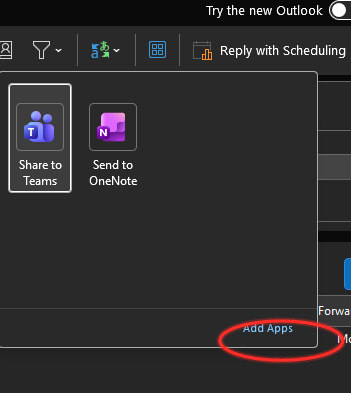
1 In Outlook, click the Apps button — the small grid icon (▦) on the toolbar (labelled Apps in the reading view, or All Apps when writing an email). At the bottom of the menu, click Add Apps.
Apps menu, Add Apps
Apps menu → Add Apps (circled)
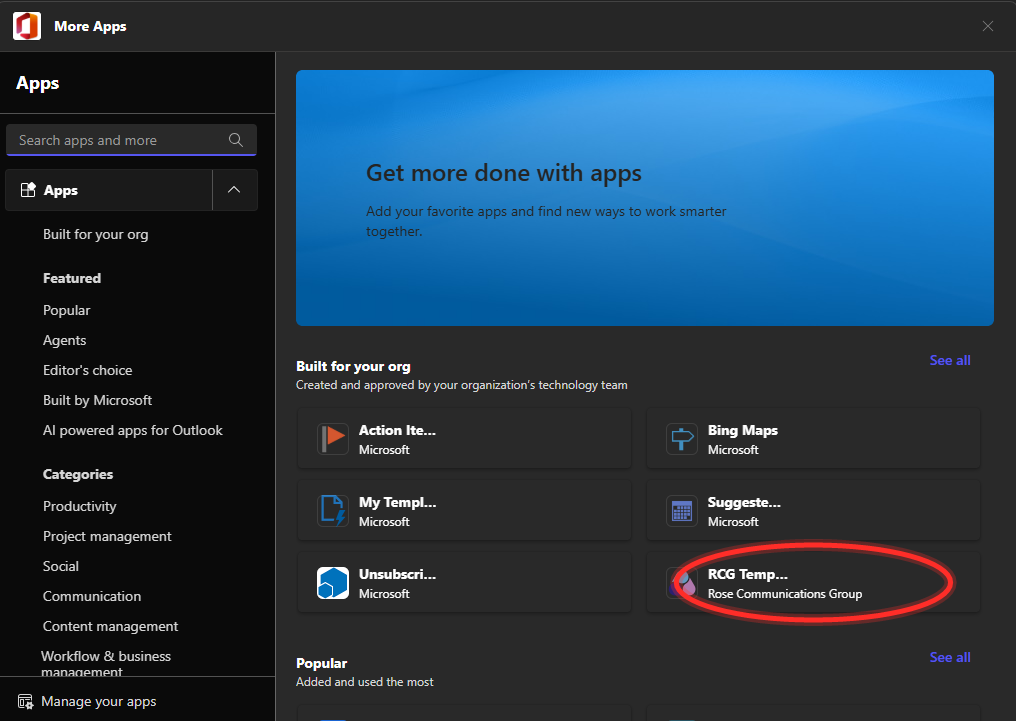
2 Under Built for your org, click RCG Templates.
RCG Templates under Built for your org
Built for your org → RCG Templates (circled)
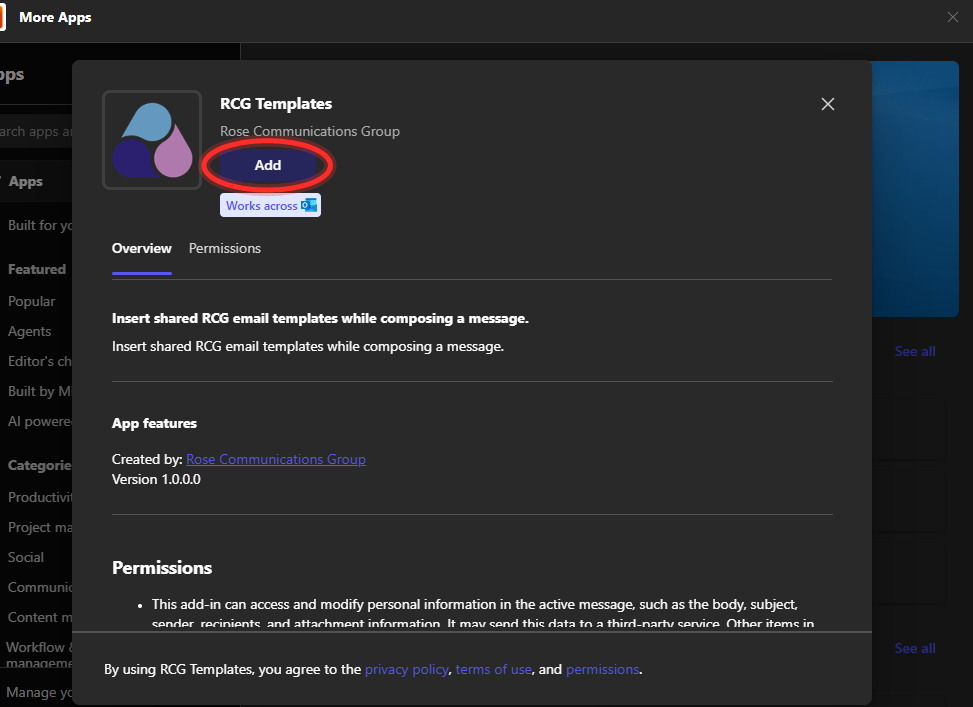
3 Click Add.
Add button
Click Add (circled)
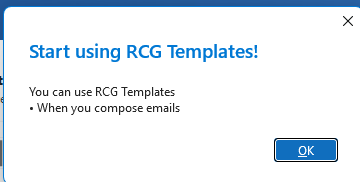
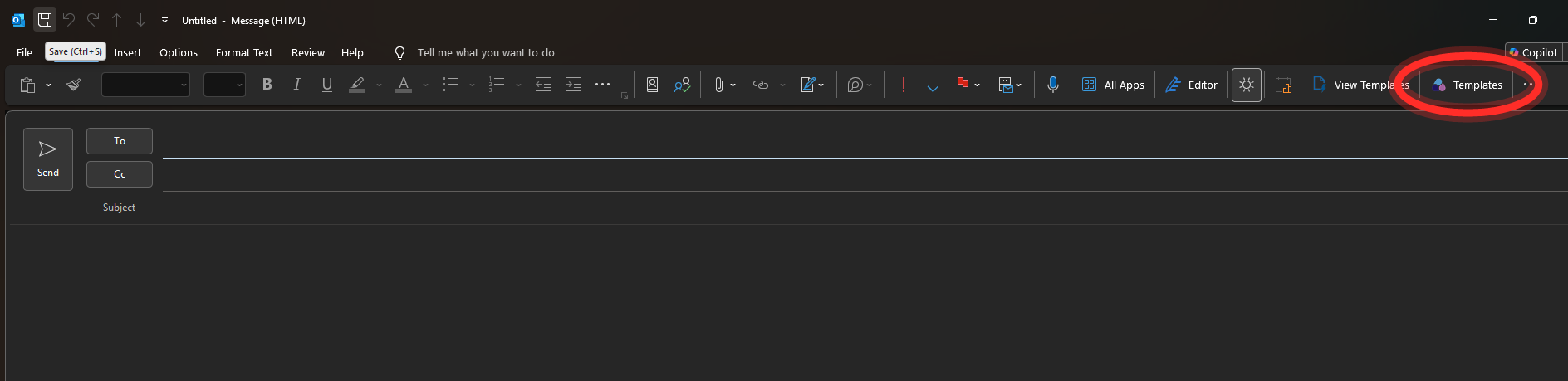
4 Done. Start a New Email and the Templates button is now on the toolbar.
Templates button on the ribbon
The Templates button (circled)

2 Use a template & send

  1. Click New Email, then click Templates on the toolbar.
  2. First time only: sign in with your RCG Templates account. No password yet? Click “First time here? Email me a login code” on the sign-in screen (or set up your account here) — you'll get a code by email to choose your password.
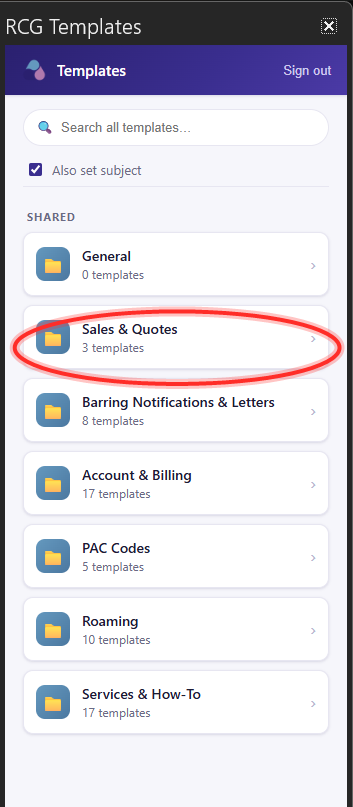
  3. Open a folder, then click a template (or its Insert button). It drops straight into your email — including the subject.
  4. Fill in any blanks like [Client Name] or XXX, add the recipient, and click Send.
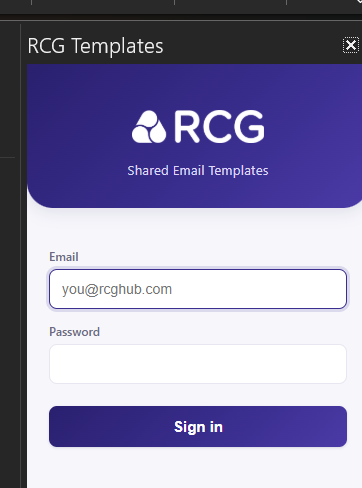
Sign in
Sign in once per device
Pick a folder
Open a folder and insert a template
Tip: the template lands wherever your cursor is, so click into the email body first. You can also type a word in the search box to find a template fast.

3 Add your own templates

You can save your own personal templates too — only you see these, and they appear under Personal in the Outlook panel.

  1. Open the dashboard: outlook.rcgroup.co.uk/dashboard and sign in with the same account.
  2. On the left, click + Personal to make a personal folder (name it anything).
  3. Click + New template, give it a name, an optional subject, type your text, and click Save.
  4. Back in Outlook, your template is ready under Personal.
Shared templates (the ones everyone sees) are managed by admins. Ask us if you'd like one added for the whole team.
Open the dashboard →

✉️ Need help?

If anything isn't working or you're not sure what to do, email us and we'll sort it:

Email for help

rafael.kander@rcgroup.co.uk (cc operations@rcgroup.co.uk)